- Published on
7 Proven Ways to Make Your Android Phone Faster Without Installing Any App
- Authors

- Name
- Siendu Damar
- Author

- Name
- George Alton
- Author
You know that frustrating moment when your phone starts acting like it's wading through molasses? You tap WhatsApp, wait two seconds, nothing happens. Tap it again, still nothing. Then suddenly both taps register at once and now you've got the app open twice. Yeah, we've all been there.
I remember when my phone hit that stage last year. Every app took forever to load, scrolling through Instagram felt choppy, and don't even get me started on trying to take a quick photo — by the time the camera app finally opened, whatever I wanted to capture was long gone.
The typical advice? "Time to upgrade!" or "Download this magic cleaner app!" But here's the thing: most of those cleaner apps are garbage at best and privacy nightmares at worst. And buying a new phone every time it slows down? Not exactly budget-friendly.
The good news is you probably don't need either option. Your phone might just need some basic maintenance, kind of like how your car runs better after an oil change. Let me walk you through the exact steps I take whenever my Android starts feeling sluggish — no apps required, no tech expertise needed.
1. Clear Out the Cache Every Now and Then
Here's the deal with cache: it's basically temporary storage that apps use to load faster. When you use Instagram, it saves little thumbnails and data so next time you open it, things pop up quicker. Smart idea in theory.
The problem? Apps tend to be hoarders. They keep accumulating this cache data and never actually clean up after themselves. Before you know it, Facebook alone might be sitting on 500MB of cached junk that's doing absolutely nothing except taking up space.
I make it a habit to clear cache once every couple weeks, especially for the apps I use most:
- Go to Settings > Apps
- Tap any app that's gotten a bit chunky (Chrome, Instagram, and Facebook are usual suspects)
- Hit Storage, then tap Clear Cache
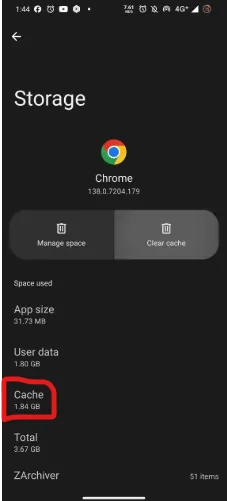
Important note: you're not deleting messages, photos, or login info. Just temporary files that'll rebuild themselves anyway. Think of it like emptying your browser's trash folder.
Quick tip from experience — if an app starts acting weird after clearing cache (rare, but it happens), just open it once and let it rebuild. Takes a few seconds and you're good to go.
2. Turn Off or Disable the Stuff You Don't Use
Okay, real talk: phone manufacturers love cramming devices full of apps you didn't ask for. There's always some branded app store, a weather app when you already use Google's, maybe a fitness tracker you'll never touch, or some game demo that's been sitting there since day one.
These apps aren't just taking up space — some actually run processes in the background. Even if you never open them, they're using tiny bits of RAM and battery. Individually it's not much, but stack ten of these together and you've got a problem.
What I do about every other month:
- Open Settings > Apps and switch to "All apps" view
- Scroll through slowly and look for stuff I genuinely don't use
- If it's something like "Samsung Daily" or a carrier-branded email app, I tap it and hit Disable
Disabling is different from uninstalling. The app stays on your phone technically, but it stops running and won't bother you. Why not uninstall? Because sometimes you literally can't — manufacturers lock certain apps. Disabling is the Next best thing.
Bonus: you can always re-enable an app later if you change your mind. I've done that exactly once in five years, so don't worry about being too aggressive here.
3. Dial Down the Animations
This one's my favorite because the difference is immediate and noticeable.
By default, Android adds little animations whenever you open apps, switch screens, or pull down menus. It looks smooth and polished, sure. But on older or slower phones, these animations can make everything feel laggy. You tap something and have to wait for the animation to finish before you can do anything else.
Here's how to speed things up:
- Go to Settings > About phone
- Find Build number and tap it seven times (yeah, really). Your phone will say "You are now a developer!" — feels cool every time
- Go back to the main settings menu, scroll down and open Developer options
- Scroll until you see three settings: Window animation scale, Transition animation scale, and Animator duration scale
- By default they're all set to 1x. Change each one to 0.5x (or turn them off completely if you want maximum speed)
Honestly, once you try this, it's hard to go back. Everything feels faster because, well, everything actually is faster. You're not waiting for fancy transitions anymore — apps just open.
Some people think it looks less "pretty" without animations, but personally I'd take speed over eye candy any day.
4. Avoid Heavy Apps (or Use the Lite Versions)
Not all apps are created equal. Some are slim and efficient. Others? Total resource hogs.
Facebook, for example, is notorious. The main app can easily consume 300-400MB just sitting there, plus it constantly checks for notifications, pre-loads videos, tracks your activity — it's doing way more than just letting you scroll through your timeline.
Same goes for apps like TikTok, Snapchat, and even the official Twitter app. They're built for flagship phones with tons of RAM and processing power. If your phone's a few years old or wasn't a flagship to begin with, these apps will drain resources fast.
Here's my approach:
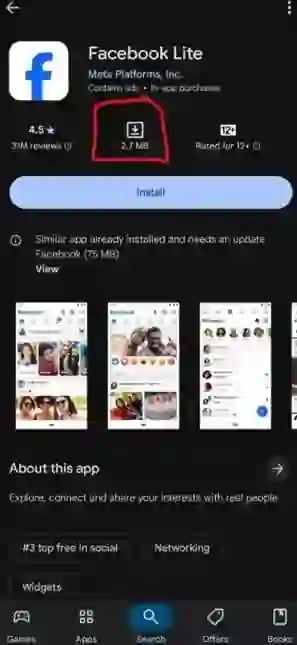
- Use Facebook Lite or Messenger Lite instead of the full versions. They're designed for slower connections and older phones, which means they're way more efficient
- Skip the Twitter app entirely — just use the mobile website. It works surprisingly well and doesn't need to be installed
- For apps I use maybe once a week, I don't install them at all. I just open them in Chrome when needed
The Lite versions might look simpler and have fewer features, but honestly? That's kind of the point. You get what you actually need without all the bloat.
5. Keep an Eye on Background Activity
Your phone is basically like a person trying to juggle ten things at once. Sure, it can do it for a while, but eventually something's gonna drop.
Lots of apps love running in the background even when you're not actively using them. They check for updates, sync data, send analytics... all kinds of stuff you probably don't need happening 24/7. Problem is, every background process takes up a little RAM and CPU power.
If you've already unlocked Developer options (from the animation trick earlier), scroll until you find Limit background processes. Set it to something like At most 4 processes. This tells your phone to only keep a handful of apps active in the background at any time.
Does this mean apps will stop working? Nope. Your phone is smart enough to keep the important stuff running (like messaging apps). But it will kill off random processes that don't need to be active.
One thing to note: if you restart an app after it's been killed in the background, it might take a second longer to open since it's starting fresh. But honestly, that's a small trade-off for overall better performance.
6. Don't Let Your Storage Overflow
Imagine trying to organize a closet that's stuffed to the brim. Can't find anything, can't move anything around, everything feels slow and frustrating. That's basically what happens to your phone when storage is almost full.
Android needs free space to operate smoothly. It uses storage for temporary files, system updates, app cache (even after you clear it, it rebuilds), and just general breathing room. When storage hits 90% or higher, performance tanks.
What I do every few weeks:
- Delete old screenshots I don't need (seriously, do you really need that meme from three months ago?)
- Clear out my Downloads folder — there's always random PDFs and images I forgot about
- Move photos and videos to Google Drive, OneDrive, or just copy them to my computer
- Uninstall games I haven't opened in forever. If I really want to play again later, I can always re-download
General rule: try to keep at least 15-20% of your storage free. If your phone has 64GB total, aim for about 10-12GB free space. Makes a bigger difference than you'd think.
7. Restart Once in a While (Seriously)
This might sound almost too simple, but hear me out: when's the last time you actually restarted your phone? Not "let the battery die and then charged it" — I mean a proper restart.
If you're like most people, the answer is probably "weeks ago" or "I honestly can't remember."
Here's the thing: Android is pretty good at managing itself, but it's not perfect. Over time, little processes pile up, temp files accumulate, memory leaks happen. A restart clears all of that out in one go. It's like giving your phone a fresh start.
I restart mine every Sunday night while I'm getting ready for the week. Takes about 30 seconds, and I wake up Monday morning with a phone that feels noticeably more responsive.
Bonus benefit: restarting also completes any pending system updates that were waiting for a reboot. So you're helping your phone stay secure and up-to-date at the same time.
Bonus: Use What Your Phone Already Has
Most modern Android phones come with some kind of built-in maintenance tool. Samsung calls it Device Care, Xiaomi has Security or Cleaner, OnePlus has Phone Manager, and so on.
These aren't gimmicks — they're actually useful. They can:
- Scan for junk files and clear them out
- Identify apps that are draining battery
- Optimize RAM usage
- Check for security issues
I usually run my phone's Device Care tool once a week, takes maybe one minute, and it finds stuff I always forget about. Things like duplicate photos, old APK files from forgotten installs, or cached data from deleted apps.
It's not magic, but it's convenient and you don't have to install anything extra.
Wrap-Up
Look, I get it — phone slowdowns are annoying. You just want your stuff to work without having to think about it.
But here's the reality: you don't need to be a tech expert or download sketchy "cleaner" apps to keep your Android running smoothly. Most of the time, all it needs is a little housekeeping. Clear some cache, disable bloatware, turn down animations, manage your storage, restart occasionally. Simple stuff.
I've been doing this routine for years, and I can honestly say my phones last way longer than they used to. I'm not upgrading every 18 months anymore. My current phone is over three years old and still runs like it's relatively new.
Try even just two or three of these tips today. I bet you'll notice a difference. And if you've got your own tricks for keeping Android fast, drop them in the comments — always looking to learn something new.